If you are familiar with Flutter, where the command "flutter doctor" is used to set up the local environment for both iOS and Android - then you would know about the command "doctor". Flutter doctor inspects the tools that are installed on the local machine and tools that need to be configured. If the Flutter doctor is happy, we can start creating a new Flutter app. Here, in React-Native, the command "react-native-doctor" is used for troubleshooting and automatically fixing errors in the development environment.
How Doctor works
The doctor command supports most of the libraries whose react-native relies on CocoaPods, Xcode, and Android SDK. It is used to find issues with the development environment and give automatic options to fix them. The errors, which the doctor command cannot fix, are displayed as a message with a helpful link.
How to install Doctor
The Doctor is available at React-Native 0.62.
npx @react-native-community/cli doctor
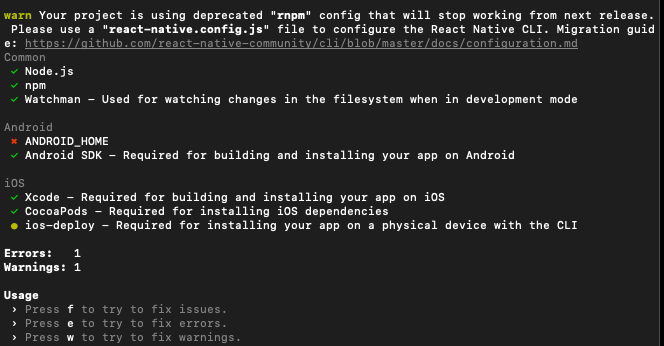
Currently Supported Doctor Checks:
- Check Node.js >= 8.3
- Check yarn >= 1.10
- Check npm >= 4
- Check Watchman >= 4
For the Android environment:
- Check Android SDK >= 26
- Check Android NDK >= 19
- Check ANDROID_HOME, an environment variable required by the Android SDK setup.
For the iOS environment:
- Check Xcode >= 10
- CocoaPods, a library dependency management tool for iOS applications.
This diagnostic tool will be really helpful in Flutter looking for the same kind of action in react-native in the future. This tool in react-native currently reduces a developer's time in fixing development issues. Good work from the react-native community (Y)!